
AI coding agents are useful, but they have a familiar failure mode: They often solve modern frontend problems with legacy patterns.
Ask an agent to build a modal, tooltip, responsive card layout, or long-running search interaction, and it may reach for extra JavaScript, older browser APIs, or another dependency. Sometimes that is the right tradeoff. But often, the browser can already solve the problem with native HTML, CSS, or platform APIs.
That gap exists because the web platform changes faster than model training data. New features ship, syntax changes, browser support improves, and best practices evolve. A model may not know the feature exists, or it may know about the feature but use outdated syntax or recommend fallbacks your project does not need.
Chrome’s Modern Web Guidance is designed to close that gap. It is a set of agent skills from the Chrome team that embeds modern web platform guidance, browser compatibility data, and best practices directly into AI coding workflows. Instead of relying only on the model’s training data, your agent can retrieve relevant guidance before it writes code.
In this article, we’ll set up Modern Web Guidance, configure a browser support target, and compare two generated task manager apps: one built with a standard AI coding agent and one built with Modern Web Guidance enabled. The goal is not to prove that native APIs are always better than libraries. It is to show how better guidance can help agents choose simpler, more current frontend solutions when the platform already supports them.
Prerequisites
To follow along, you’ll need:
-
- A supported AI coding agent, such as Antigravity, Gemini CLI, Claude Code, Copilot CLI, or another tool that supports agent skills
-
- A frontend project to test against. This article uses a React/Next.js project, but the guidance itself is not React-specific
Why AI coding agents ship legacy web code
Large language models have a basic limitation: Their knowledge has a cutoff date. Even when an agent can search or retrieve documentation, it may still default to familiar patterns from its training data unless the workflow explicitly tells it to check modern platform guidance.
This creates two common failure modes:
-
- The agent does not know a newer browser feature exists. For example, it may install a tooltip library instead of considering CSS Anchor Positioning or the Popover API.
-
- The agent knows the feature exists, but uses the wrong syntax or support assumptions. This can lead to broken attributes, incomplete fallbacks, or code that works only in a narrow browser target.
Legacy code has real costs. It can increase bundle size, add maintenance overhead, introduce more failure points, and make performance harder to reason about. Over time, those small choices accumulate into a frontend that is more complex than it needs to be.
You might assume that retrieval-augmented generation (RAG) solves this. RAG can help, but it still pushes a lot of work onto the developer. You have to find the right documentation, keep it current, and make sure the model can reason over it correctly for each task.
Modern Web Guidance takes a more structured approach. It packages expert-curated guidance into skills that an agent can discover and retrieve as part of its normal coding loop.
At a high level, it helps agents:
-
- Avoid outdated frontend patterns
-
- Prefer native HTML, CSS, and browser APIs when they are a good fit
-
- Apply accessibility and UI guidance more consistently
-
- Consider performance metrics such as Interaction to Next Paint (INP) and Largest Contentful Paint (LCP)
-
- Follow security best practices around areas such as Content Security Policy (CSP), cookies, and cross-origin isolation
-
- Match recommendations to the project’s declared browser support target
What Modern Web Guidance changes in practice
Without Modern Web Guidance, an agent may treat a native browser feature as an edge case and solve the problem with a dependency. With Modern Web Guidance, the same agent is more likely to ask: “Can the platform do this already?”
That difference matters because it changes the default decision path. The agent can still choose a library when browser support, product requirements, or team constraints make that the better option. But the library is no longer the automatic first answer.
Modern Web Guidance covers several areas of frontend development:
| Discipline | What the agent can retrieve guidance on |
|---|---|
| User experience | View Transitions, entry and exit animations, scroll-driven effects, and native interaction patterns |
| CSS layout | Container queries, subgrid, anchor positioning, intrinsic sizing, and modern color spaces like oklch |
| Performance | INP diagnostics, scheduler.yield(), background task scheduling, and image/resource prioritization |
| Forms and UI | Native <dialog>, the Popover API, form validation states, and accessible UI behavior |
| Accessibility | Focus management, semantic HTML, accessible errors, keyboard behavior, and ARIA usage |
| Security and privacy | CSP, cookies, cross-origin isolation, data minimization, and safer defaults |
| Built-in AI | On-device translation, summarization, and language detection APIs where available |
Chrome’s documentation describes Modern Web Guidance as an early preview, so treat it as a fast-moving tool rather than a static reference. That makes the installation and update path important.
Setting up Modern Web Guidance
The recommended installation path is the modern-web-guidance CLI, which installs the skill files and keeps them updated.
Open your terminal and run:
npx modern-web-guidance@latest install
The installer guides you through setup and lets you choose where the skills should be available. Depending on your workflow, you can install the guidance globally or into a specific project.
A project-level install is a good default when you want the guidance to travel with one codebase. A global install is useful if you want the same guidance available across multiple projects and agents on your machine.
Install directly into a specific agent
You can also install Modern Web Guidance directly for specific coding agents.
For Gemini CLI, run:
gemini extensions install --auto-update
For Antigravity CLI, run:
agy plugin install
For Claude Code, add the marketplace, install the plugin, and reload plugins:
/plugin marketplace add GoogleChrome/modern-web-guidance
/plugin install modern-web-guidance@googlechrome
/reload-plugins
For Copilot CLI, add the marketplace and install the plugin:
/plugin marketplace add GoogleChrome/modern-web-guidance
/plugin install modern-web-guidance@googlechrome
For GitHub CLI, run:
gh skill install GoogleChrome/modern-web-guidance
For Vercel Skills, run:
npx skills add GoogleChrome/modern-web-guidance
The exact install path depends on the agent, but the result is the same: Your coding agent gains access to a skill that can search and retrieve modern web platform guidance before implementing a task.
Verify the installation
After installation, confirm that the skill is available to your agent. Depending on your install method, you may see generated skill files in your project or user-level agent configuration directory.
Modern Web Guidance also exposes CLI commands you can use to explore the guide library directly. For example, you can search for guidance on animating a dialog modal:
npx modern-web-guidance@latest search "animate a dialog modal backdrop"
Then retrieve a specific guide by ID:
npx modern-web-guidance@latest retrieve "animate-to-from-top-layer"
This is useful even before you wire the skill into an agent. It lets you inspect the guidance your agent will receive and verify that the relevant use cases exist for the feature you are building.
Set a Baseline target
Modern Web Guidance is most useful when it knows what browsers your project supports. Otherwise, it has to be conservative.
By default, Modern Web Guidance targets Baseline Widely available. That means the agent will usually include progressive enhancement patterns, fallbacks, or conditional loading where a feature is not broadly supported.
If your project targets a newer browser set, declare that explicitly in your agent instruction file, such as AGENTS.md, CLAUDE.md, or .gemini/GEMINI.md:
This project's Baseline target is Baseline 2024.
You can also add project-specific support context:
# Browser support target

This project's Baseline target is Baseline 2024.
Prefer native browser APIs when they meet this target.
Use progressive enhancement for newer or limited-availability features.
This helps the agent decide when it can use a modern feature directly and when it should include a fallback. For example, an internal dashboard locked to recent Chromium browsers can make different choices than a public consumer app that needs broad Safari and Firefox support.
The important part is that the browser target becomes part of the agent’s context. Without it, the agent may either over-polyfill or use a feature too aggressively.
Testing Modern Web Guidance in a sample app
To see what Modern Web Guidance changes in practice, I created two copies of the same initialized Next.js project:
taskmanager1: Built without Modern Web Guidancetaskmanager2: Built with Modern Web Guidance enabled
I used Gemini CLI with the same model settings in both environments and gave both agents the same prompt:
Build a Task Manager app. It should have:

- A modal for adding tasks with smooth entrance and exit animations.
- Task cards that stack vertically in a sidebar but show full details in the main area.
- A search bar that filters 2,000 tasks without lagging the UI.
- A Help tooltip tethered to the Status icon that flips if it hits the viewport edge.
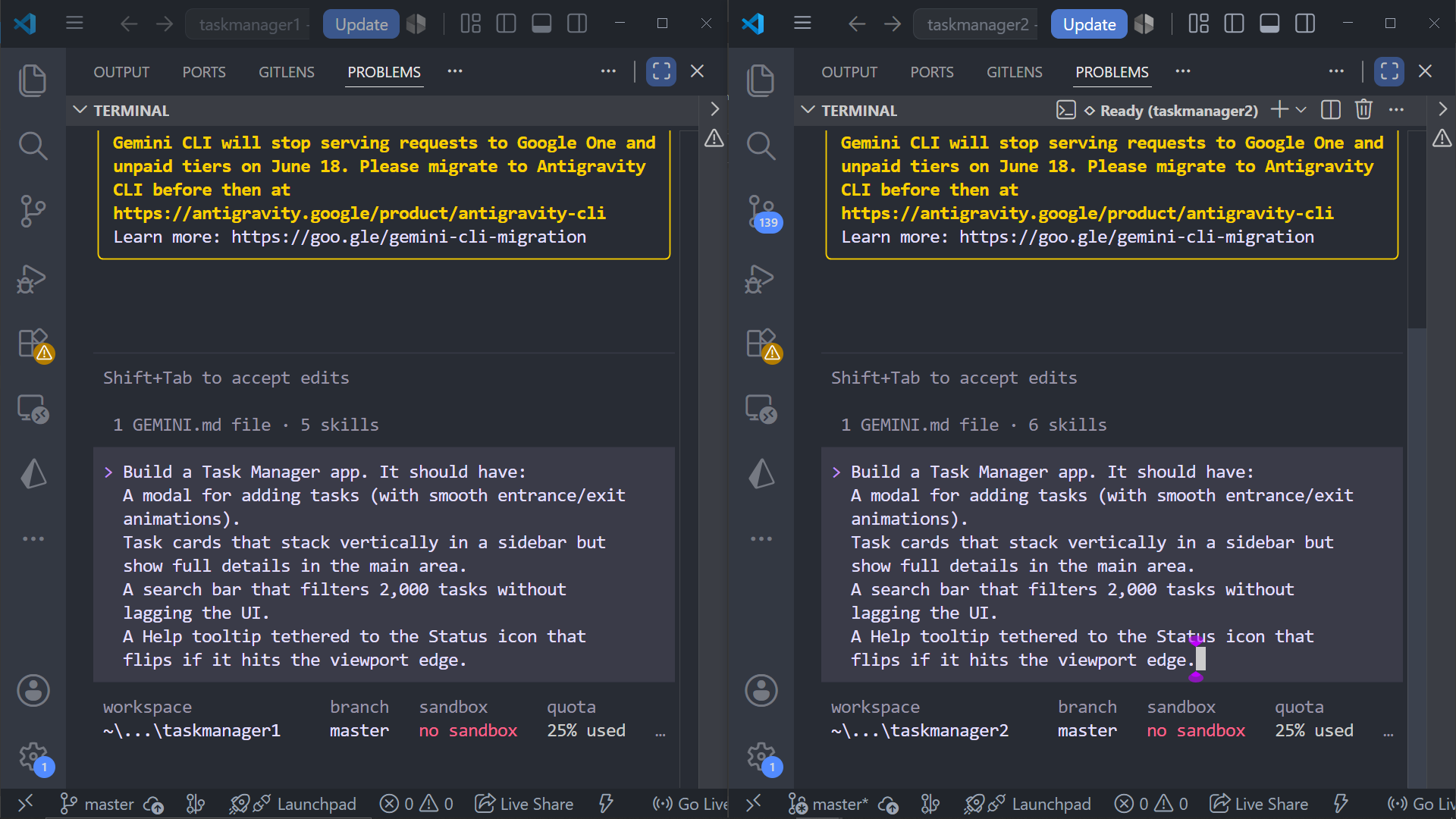
The same prompt was run against two copies of the project: one without Modern Web Guidance and one with the skill enabled.
The most interesting difference was not just the final code. It was the agent’s decision process.
Without Modern Web Guidance, the agent treated UI complexity as a signal to add libraries. With Modern Web Guidance installed, the agent added a research step to look for relevant browser-native patterns before implementing the feature.
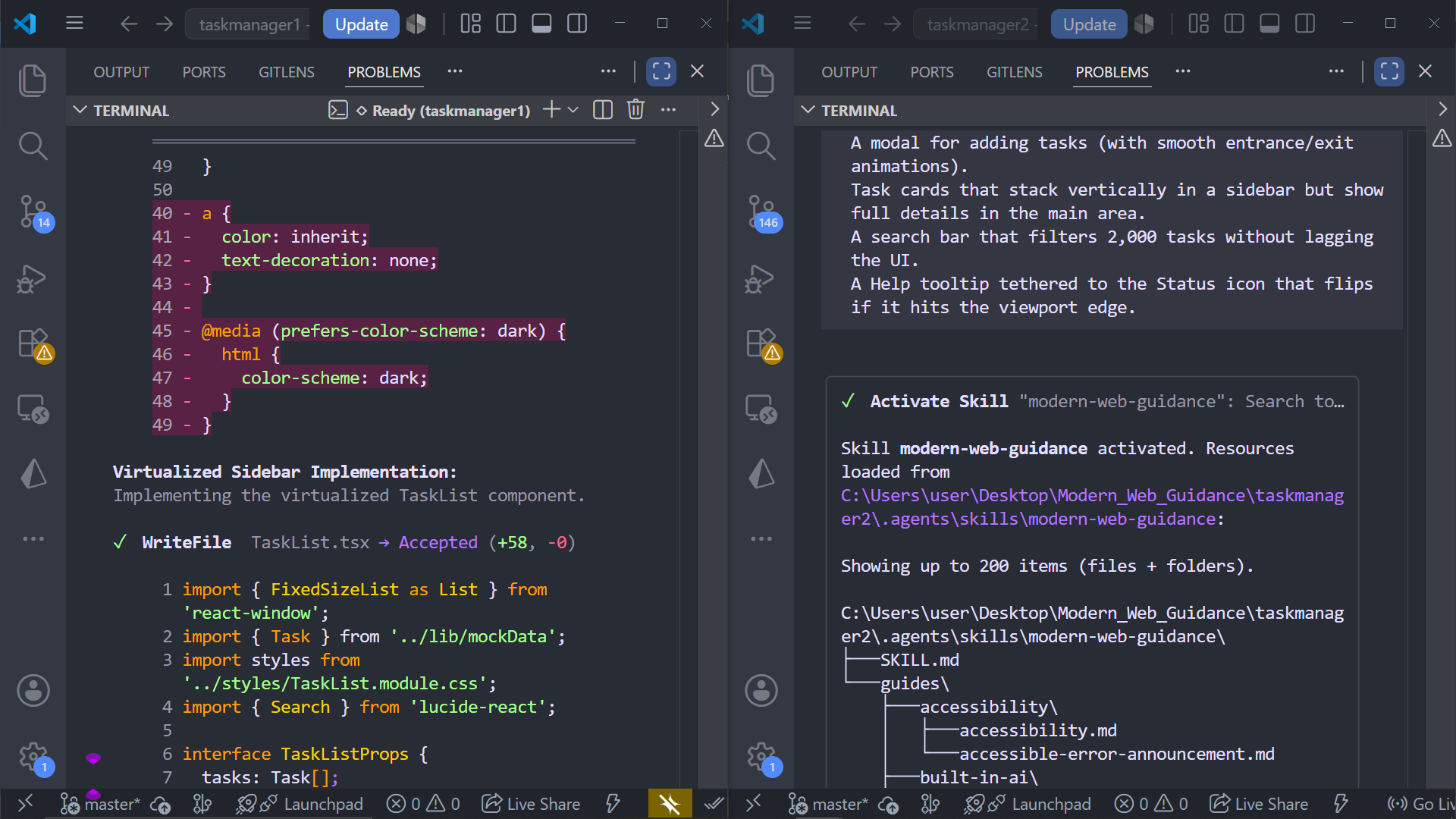
With Modern Web Guidance enabled, the agent retrieved relevant platform guidance before choosing an implementation approach.
Comparing the results
Here is how the two builds differed:
| Feature | taskmanager1 without guidance |
taskmanager2 with guidance |
|---|---|---|
| Modal animation | Used a custom modal implementation with JavaScript state and transition timing | Used native <dialog> with modern CSS entry/exit animation patterns |
| Task cards | Used media queries, which made the layout dependent on viewport width | Used CSS Container Queries, so cards adapted to the sidebar container |
| Search filter | Used React memoization and timer-based logic, but still relied on synchronous filtering | Used scheduler.yield() to break work into chunks and keep the UI responsive |
| Help tooltip | Used a floating UI dependency for positioning and edge flipping | Used CSS Anchor Positioning where supported by the project target |
The biggest change was dependency pressure. In taskmanager1, the agent added extra JavaScript to solve UI interactions that the browser can increasingly handle on its own. In taskmanager2, the agent used the Modern Web Guidance skill to identify native equivalents and avoid additional UI positioning and animation packages for these features.
That does not mean every app should remove every UI dependency. Libraries still matter when you need broader browser support, mature accessibility abstractions, complex design-system behavior, or consistent cross-framework APIs. The point is that the agent made a more informed tradeoff.
The tooltip requirement asked for a Help tooltip tethered to the Status icon that flips when it reaches the viewport edge.
Without Modern Web Guidance
The unguided agent installed a positioning library and wrote a hook-based component:
import { useFloating, flip, shift, offset } from '@floating-ui/react';

export function StatusTooltip({ children }) {
  const { refs, floatingStyles } = useFloating({
    placement: 'top',
    middleware: [offset(10), flip(), shift()],
  });

  return (
    <>
      <div ref={refs.setReference} className="status-icon">i</div>
      <div ref={refs.setFloating} style={floatingStyles} className="tooltip">
        {children}
      </div>
    </>
  );
}
This is not inherently wrong. Floating UI is a strong option when you need robust positioning across browsers and complex interactions. But for a simple tooltip in a modern-browser target, it may be more than the feature requires.
With Modern Web Guidance
The guided agent recognized CSS Anchor Positioning as a possible fit. A simplified version looks like this:
export function StatusTooltip({ children }) {
  return (
    <>
      <div className="status-icon">i</div>
      <div className="tooltip" role="tooltip">
        {children}
      </div>
    </>
  );
}
.status-icon {
  anchor-name: --status-icon;
}

.tooltip {
  position: absolute;
  position-anchor: --status-icon;
  position-area: top;
  position-try-fallbacks: flip-block;
  margin-bottom: 10px;
}
The implementation moves positioning work out of JavaScript and into CSS. That makes the code smaller and easier to inspect. However, this is also where the Baseline target matters. If your app needs browsers that do not fully support CSS Anchor Positioning, you still need a progressive enhancement strategy or a library fallback.
Code comparison: Modal animation
The modal requirement asked for smooth entrance and exit animations. The two builds solved that at different layers of the stack.
Without Modern Web Guidance
The unguided agent used createPortal, a shouldRender flag, and a setTimeout to keep the modal mounted long enough for the exit animation to finish:
export const Modal = ({ isOpen, onClose, title, children }: ModalProps) => {
  const [shouldRender, setShouldRender] = useState(isOpen);

  useEffect(() => {
    if (isOpen) {
      setShouldRender(true);
      document.body.style.overflow = 'hidden';
    } else {
      const timer = setTimeout(() => {
        setShouldRender(false);
        document.body.style.overflow = 'auto';
      }, 300);

      return () => clearTimeout(timer);
    }
  }, [isOpen]);

  if (!shouldRender) return null;

  return createPortal(
    <div className={`${styles.overlay} ${isOpen ? styles.open : ''}`} onClick={onClose}>
      <div
        className={`${styles.modal} ${isOpen ? styles.open : ''}`}
        onClick={(event) => event.stopPropagation()}
      >
        {children}
      </div>
    </div>,
    document.body
  );
};
The fragile part is the 300 millisecond timer. The JavaScript timeout and the CSS transition duration have to stay in sync manually. If someone changes the animation duration in CSS, the JavaScript can fall out of sync.
With Modern Web Guidance
The guided version used the native <dialog> element and let the browser handle top-layer behavior. In React, you still need a small amount of JavaScript to open and close the dialog, but you no longer need a custom render timer or portal layer:
import { useEffect, useRef } from 'react';

export function TaskModal({ open, onClose, children }: TaskModalProps) {
  const dialogRef = useRef<HTMLDialogElement>(null);

  useEffect(() => {
    const dialog = dialogRef.current;
    if (!dialog) return;

    if (open && !dialog.open) {
      dialog.showModal();
    }

    if (!open && dialog.open) {
      dialog.close();
    }
  }, [open]);

  return (
    <dialog ref={dialogRef} onClose={onClose}>
      <form method="dialog">
        {children}
        <button type="submit">Create task</button>
        <button type="button" onClick={() => dialogRef.current?.close()}>
          Cancel
        </button>
      </form>
    </dialog>
  );
}
Then CSS handles the entry and exit animation:
dialog {
  opacity: 0;
  transform: scale(0.96);
  transition:
    display 0.4s,
    overlay 0.4s,
    opacity 0.4s ease,
    transform 0.4s ease;
  transition-behavior: allow-discrete;
}

dialog[open] {
  opacity: 1;
  transform: scale(1);
}

@starting-style {
  dialog[open] {
    opacity: 0;
    transform: scale(0.96);
  }
}

dialog::backdrop {
  background: rgb(0 0 0 / 40%);
}
There is no render timeout to maintain. The browser’s top layer handles important modal behavior, including focus handling and backdrop rendering. You should still test keyboard behavior, focus return, and screen reader output, but the implementation starts from a stronger native primitive.
Code comparison: Search performance
The prompt asked for a search bar that filters 2,000 tasks without lagging the UI. This is an INP problem: if a synchronous loop blocks the main thread, the browser cannot respond to input or paint the next frame until the work finishes.
Without Modern Web Guidance
The unguided agent wrapped the filter in useMemo:
const filteredTasks = useMemo(() => {
  return tasks.filter((task) =>
    task.title.toLowerCase().includes(searchTerm.toLowerCase()) ||
    task.description.toLowerCase().includes(searchTerm.toLowerCase())
  );
}, [tasks, searchTerm]);
useMemo avoids unnecessary recalculation across renders, but it does not make the filtering work non-blocking. When searchTerm changes, the full filter still runs synchronously on the main thread. This is one of the React patterns that quietly kills performance at scale.
With Modern Web Guidance
The guided agent used scheduler.yield() to break the loop into smaller chunks. That gives the browser a chance to handle user input and paint between batches:
useEffect(() => {
  let cancelled = false;

  const filterTasks = async () => {
    setIsFiltering(true);

    const query = searchQuery.toLowerCase();
    const results: Task[] = [];

    for (let index = 0; index < tasks.length; index++) {
      if (index > 0 && index % 50 === 0) {
        if ('scheduler' in window && 'yield' in window.scheduler) {
          await window.scheduler.yield();
        } else {
          await new Promise(requestAnimationFrame);
        }
      }

      const task = tasks[index];
      const title = task.title.toLowerCase();
      const description = task.description.toLowerCase();

      if (title.includes(query) || description.includes(query)) {
        results.push(task);
      }
    }

    if (!cancelled) {
      setFilteredTasks(results);
      setIsFiltering(false);
    }
  };

  filterTasks();

  return () => {
    cancelled = true;
  };
}, [searchQuery, tasks]);
The important change is not just the API choice. The agent reasoned about the interaction as a responsiveness problem rather than a React rendering problem. That led to a different implementation strategy: split long work so the browser can keep responding.
For production, you would still test this with realistic data and devices. For very large datasets, server-side search, indexing, virtualization, or a Web Worker may be more appropriate. But for this demo, Modern Web Guidance moved the agent toward the right performance question.
Where you still need developer judgment
Modern Web Guidance improves the agent’s starting point, but it does not remove the need for review. The guidance can help an agent discover modern browser features, but you still need to validate whether those choices fit your product.
Before shipping AI-generated frontend code, review the following:
| Question | Why it matters |
|---|---|
| Does this match our browser support target? | A native API may be appropriate for an internal Chrome-only app but risky for a broad public audience. |
| Is the fallback strategy clear? | Newer features often need progressive enhancement or conditional loading. |
| Is the accessibility behavior complete? | Native elements help, but you still need to test keyboard behavior, focus order, labels, and announcements. |
| Did the agent reduce complexity or just move it? | A smaller dependency list is only useful if the resulting code is easier to maintain. |
| Did we test the actual user path? | Generated code can look modern while still failing in edge cases. |
This is the right mental model: Modern Web Guidance helps the agent ask better questions. It does not replace code review, browser testing, or product-specific tradeoff decisions.
Conclusion
AI coding agents are only as good as the context they use. Without current web platform guidance, they often reach for familiar solutions: extra dependencies, JavaScript-heavy UI code, or older patterns that made sense before newer browser APIs were available.
Chrome’s Modern Web Guidance gives those agents a more current decision path. In the task manager demo, that changed the output in concrete ways: The agent used native <dialog> patterns for modal behavior, CSS Container Queries for component-level responsiveness, CSS Anchor Positioning for the tooltip, and scheduler.yield() to keep filtering responsive. The result was not just less code. It was a different default: check what the browser can do first, then add a dependency only when the project actually needs one.
The main takeaway is not that native APIs should always replace libraries. The takeaway is that AI-generated code needs modern constraints. Install the guidance, declare your Baseline target, and review the output against your real browser support, accessibility, and performance requirements.
You can explore the source code for both demo applications below:
- taskmanager1: The implementation generated without Modern Web Guidance
- taskmanager2: The implementation generated with Modern Web Guidance enabled
PakarPBN
A Private Blog Network (PBN) is a collection of websites that are controlled by a single individual or organization and used primarily to build backlinks to a “money site” in order to influence its ranking in search engines such as Google. The core idea behind a PBN is based on the importance of backlinks in Google’s ranking algorithm. Since Google views backlinks as signals of authority and trust, some website owners attempt to artificially create these signals through a controlled network of sites.
In a typical PBN setup, the owner acquires expired or aged domains that already have existing authority, backlinks, and history. These domains are rebuilt with new content and hosted separately, often using different IP addresses, hosting providers, themes, and ownership details to make them appear unrelated. Within the content published on these sites, links are strategically placed that point to the main website the owner wants to rank higher. By doing this, the owner attempts to pass link equity (also known as “link juice”) from the PBN sites to the target website.
The purpose of a PBN is to give the impression that the target website is naturally earning links from multiple independent sources. If done effectively, this can temporarily improve keyword rankings, increase organic visibility, and drive more traffic from search results.